1. Connect Your HubSpot Account
Click Install app to connect OrgChart to your HubSpot account.
Important: OrgChart is installed at the HubSpot account level. Once an admin installs the app, the account authorization can be used by the rest of the users in that HubSpot account. Individual users may still need access to the app cards in their HubSpot views.
Install app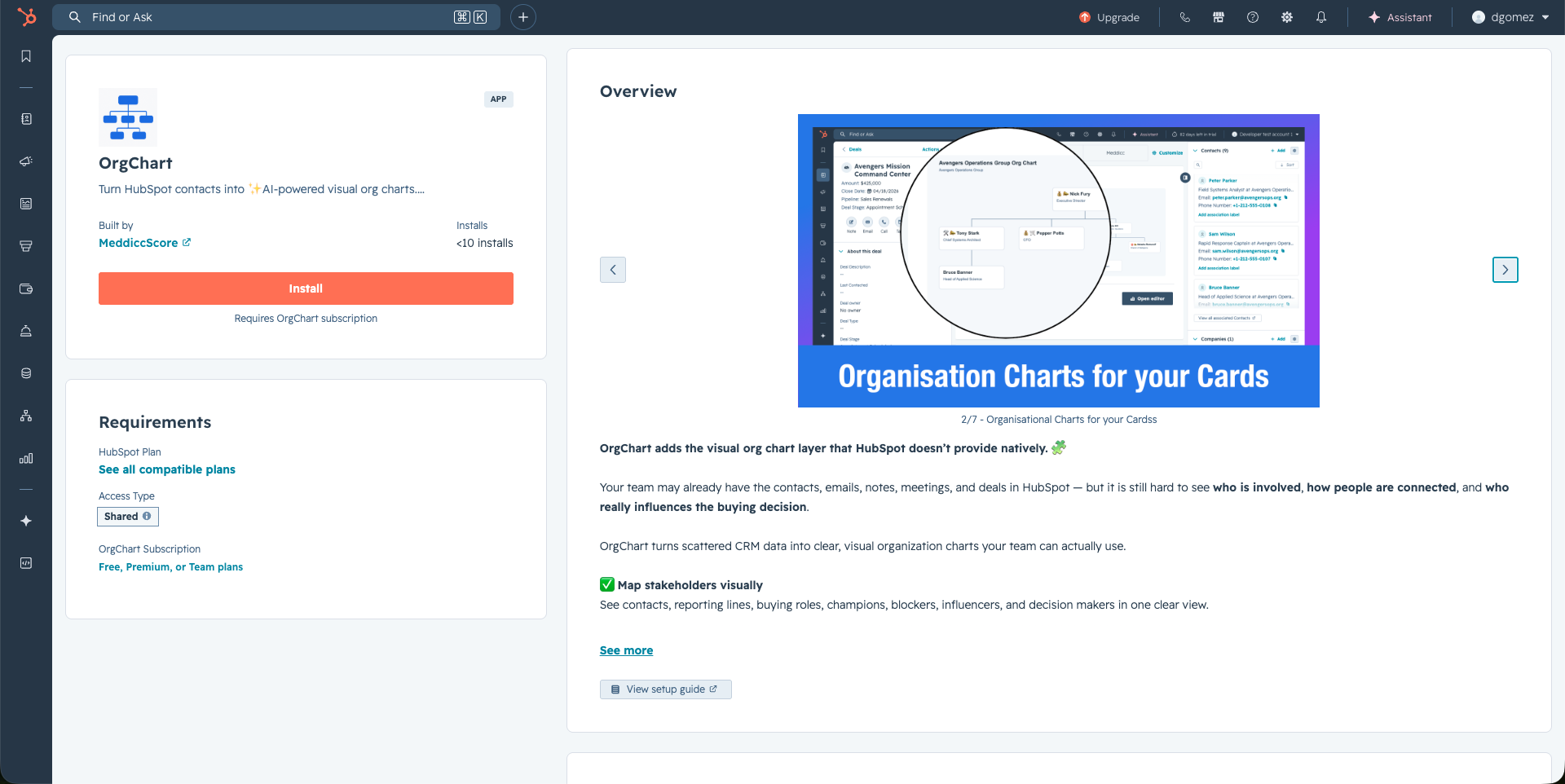
2. Login and Choose the HubSpot Account
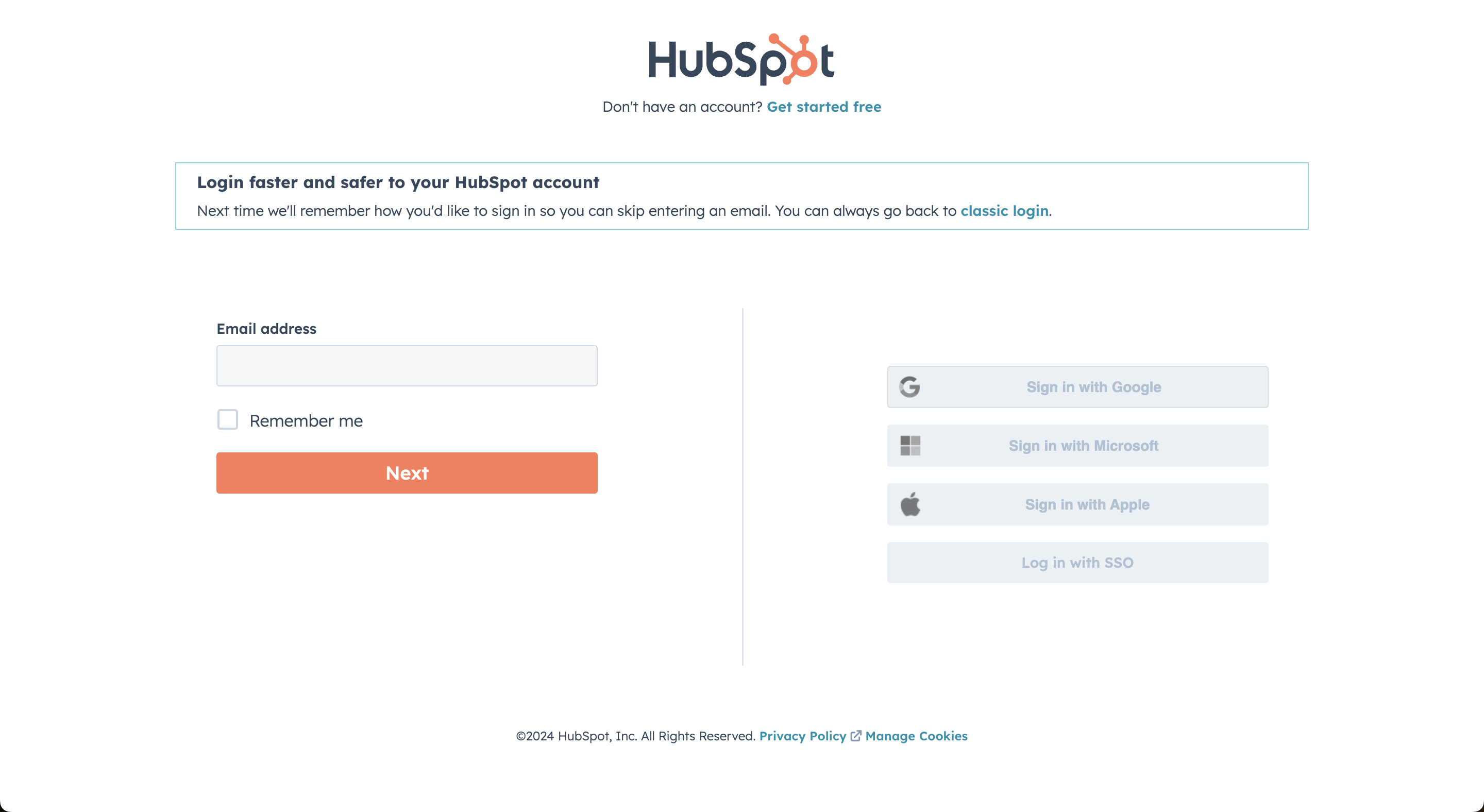
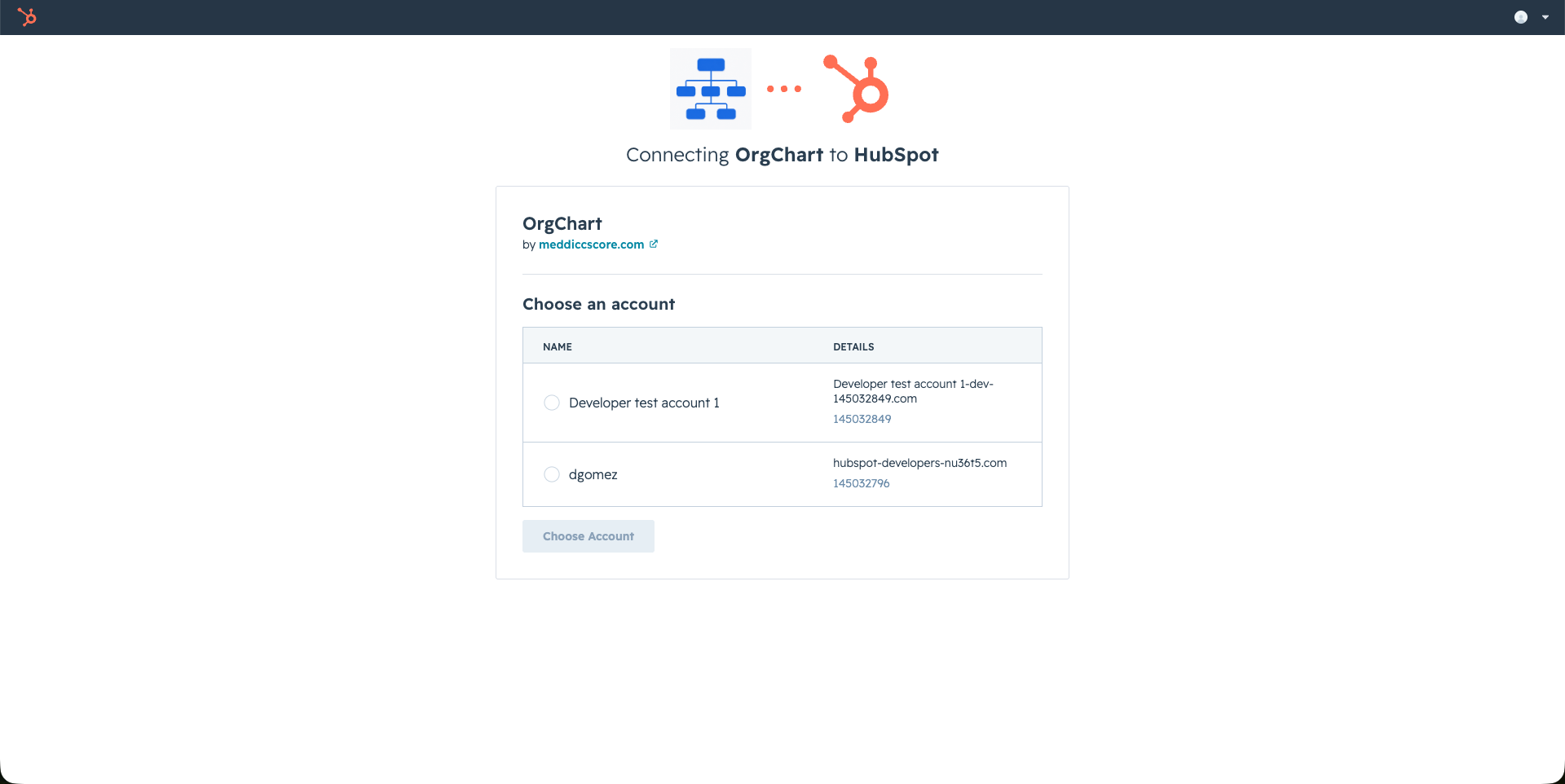
Use your normal HubSpot login. If you have access to multiple HubSpot accounts, choose the account where OrgChart should be installed.
3. Approve Permissions
Approve the requested HubSpot permissions and click Connect app. OrgChart needs access to deals, companies, and contacts so it can show cards, read associated CRM records, create manual contacts inside OrgChart, and generate organization charts from deal context.
The first user who installs OrgChart for a HubSpot account becomes an OrgChart admin by default. Additional admins can be managed later from OrgChart settings.
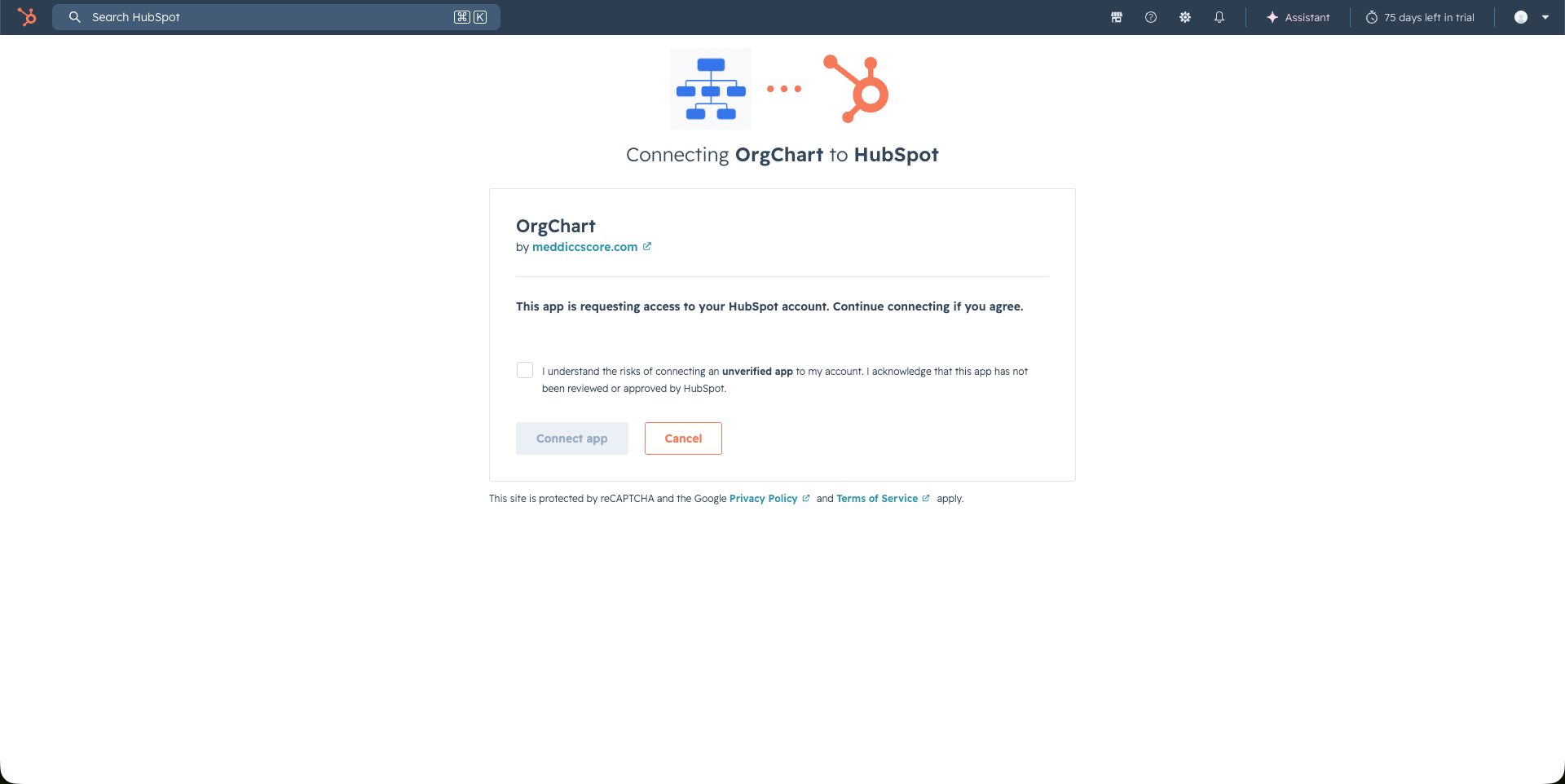
4. Add OrgChart Cards to HubSpot Views
After installation, HubSpot admins can add OrgChart cards to Deal, Company, and Contact record pages.
Go to HubSpot Settings > Connected Apps > OrgChart > App cards > Manage locations. Add the cards to the views your team uses.
Users can also add cards from a CRM record by clicking Customize, selecting the record view, and adding OrgChart cards from the App card library.
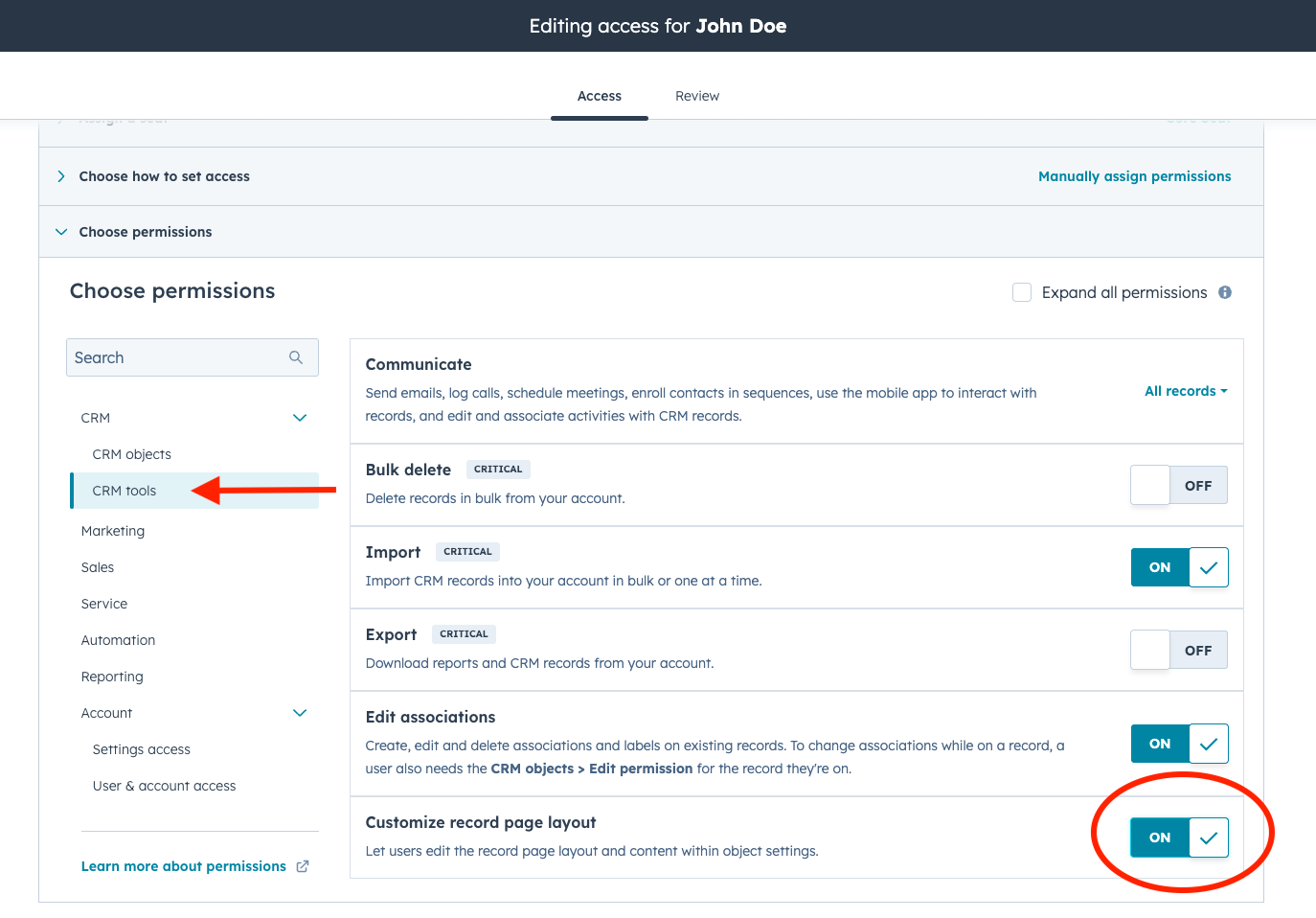
HubSpot permission required: users need Customize record page layout permissions or Super Admin permissions to add app cards to a record layout.
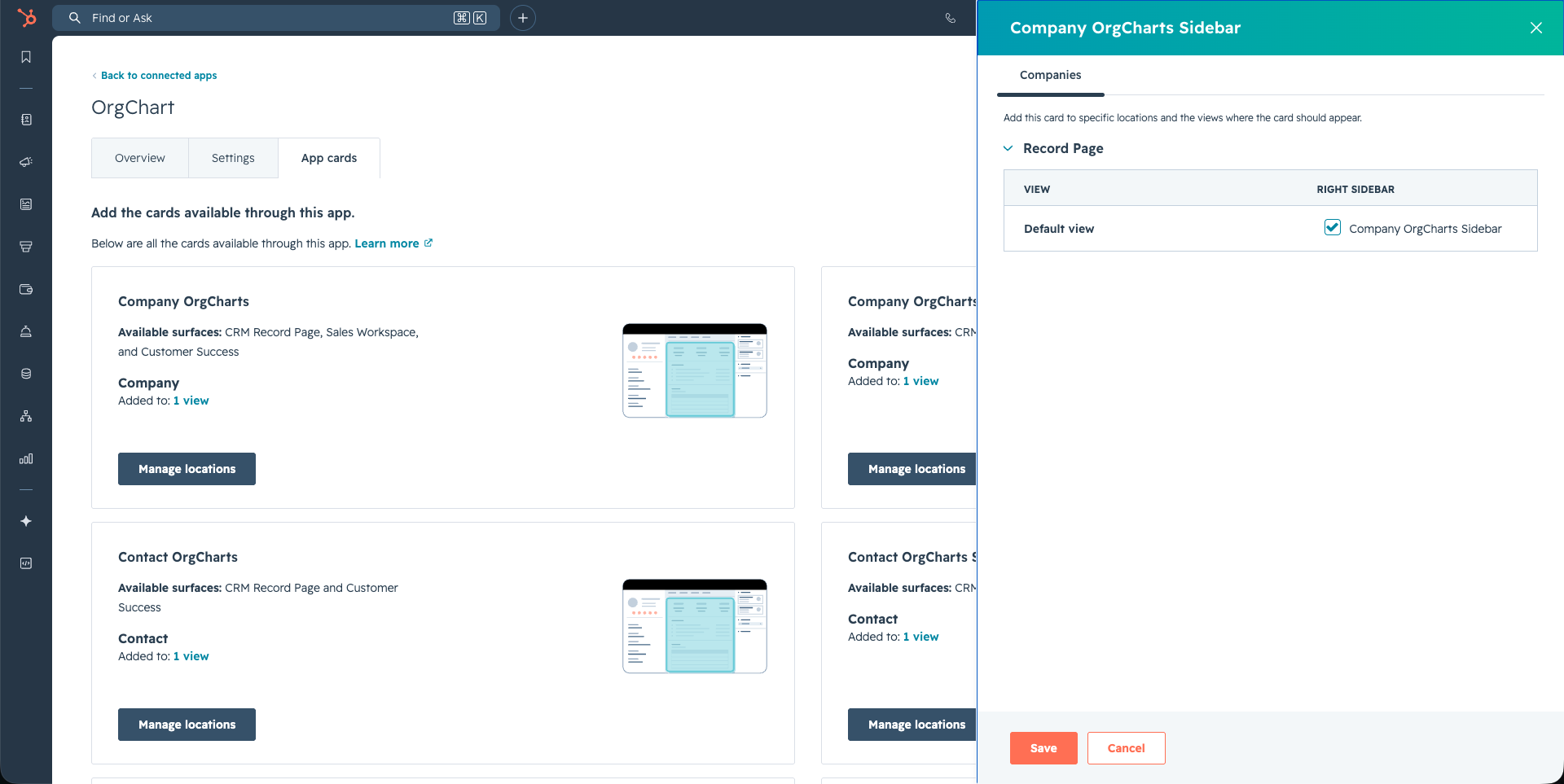
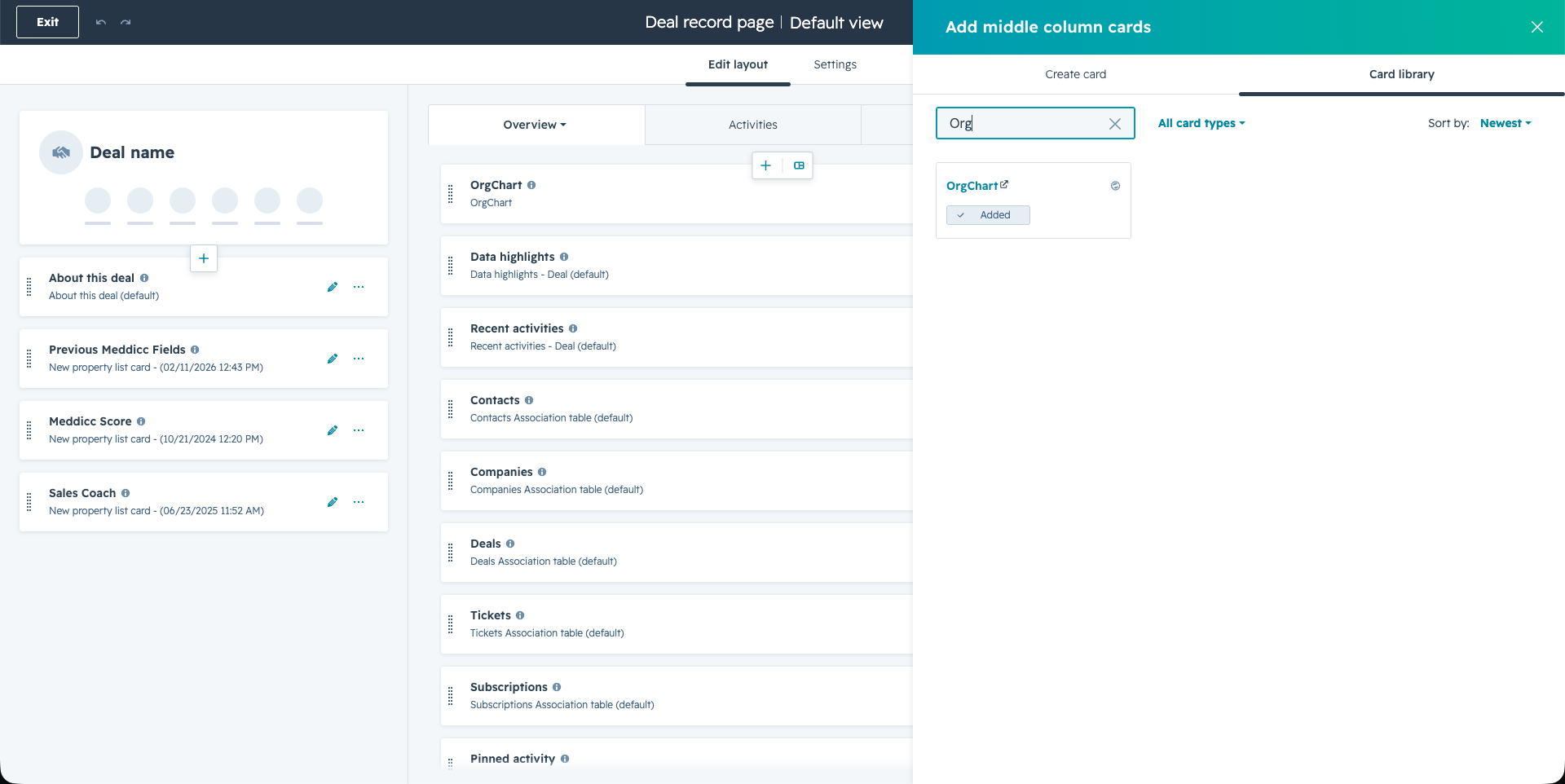
The available cards are:
- Deal Org Chart: available as a middle tab card and right sidebar card.
- Company OrgCharts: available as a middle tab card and right sidebar card.
- Contact OrgCharts: available as a middle tab card and right sidebar card.
5. Deal Cards
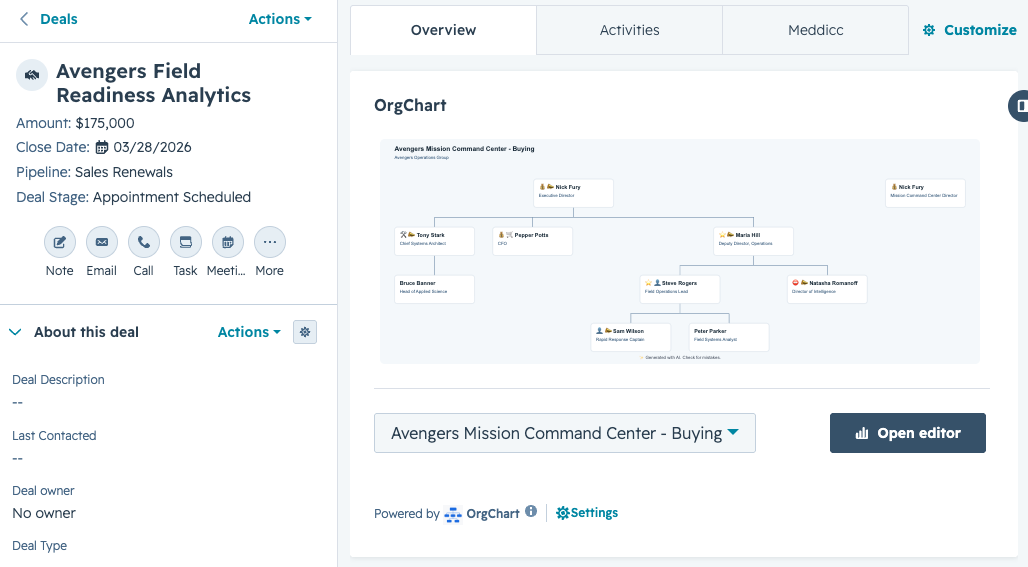
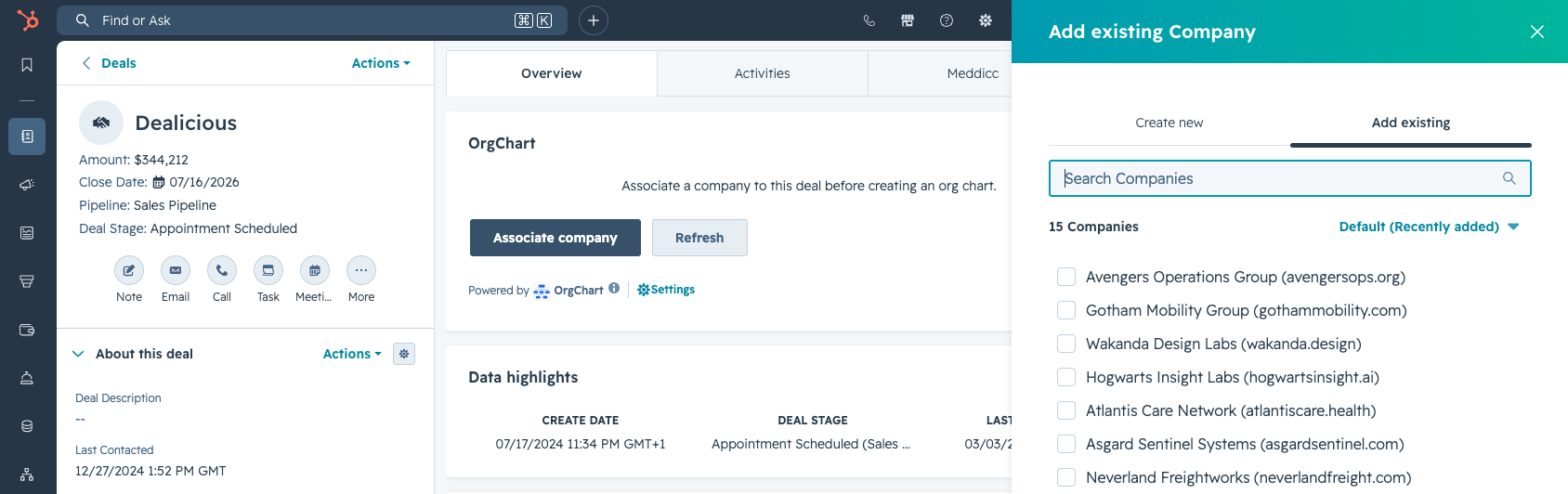
The deal card is the main place to create and work with an org chart. The card shows a preview image of the current organization chart for the deal. Click the preview image or Open editor to open the editor.
If the deal has no associated company, OrgChart cannot create a company-level org chart yet. In that case, the card shows an action to associate a company with the deal first.
If the company has multiple org charts, use the selector on the card to choose which chart should be shown for that deal.
6. Company Cards
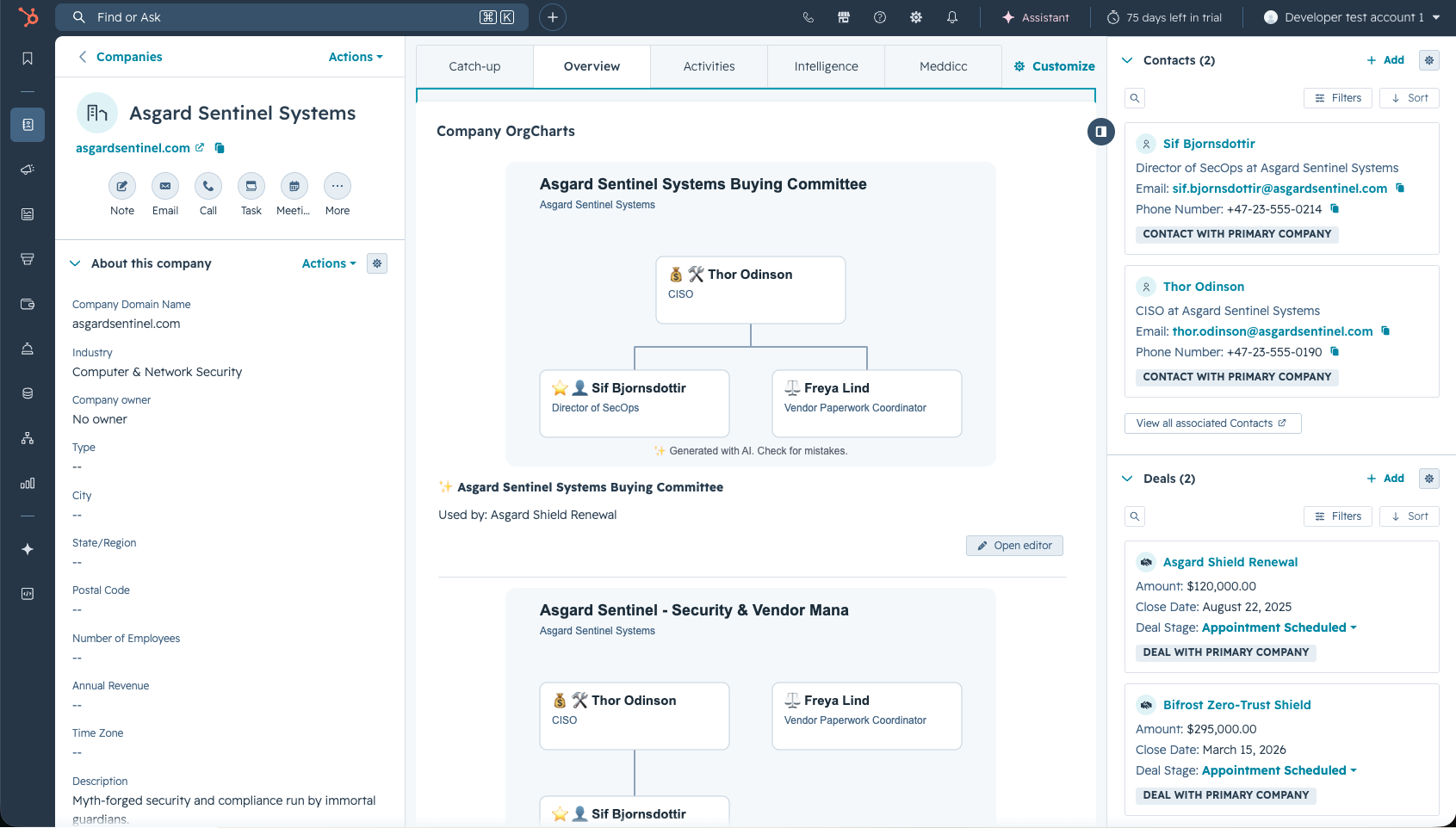
The company card lists all org charts associated with that company. Each chart shows:
- The org chart preview image.
- The org chart name.
- The deals associated with that chart.
- An action to open the editor through an associated deal.
Company-level charts are shared across deals for the same company. This means one chart can be reused by multiple deals when the sales team is mapping the same account.
7. Contact Cards
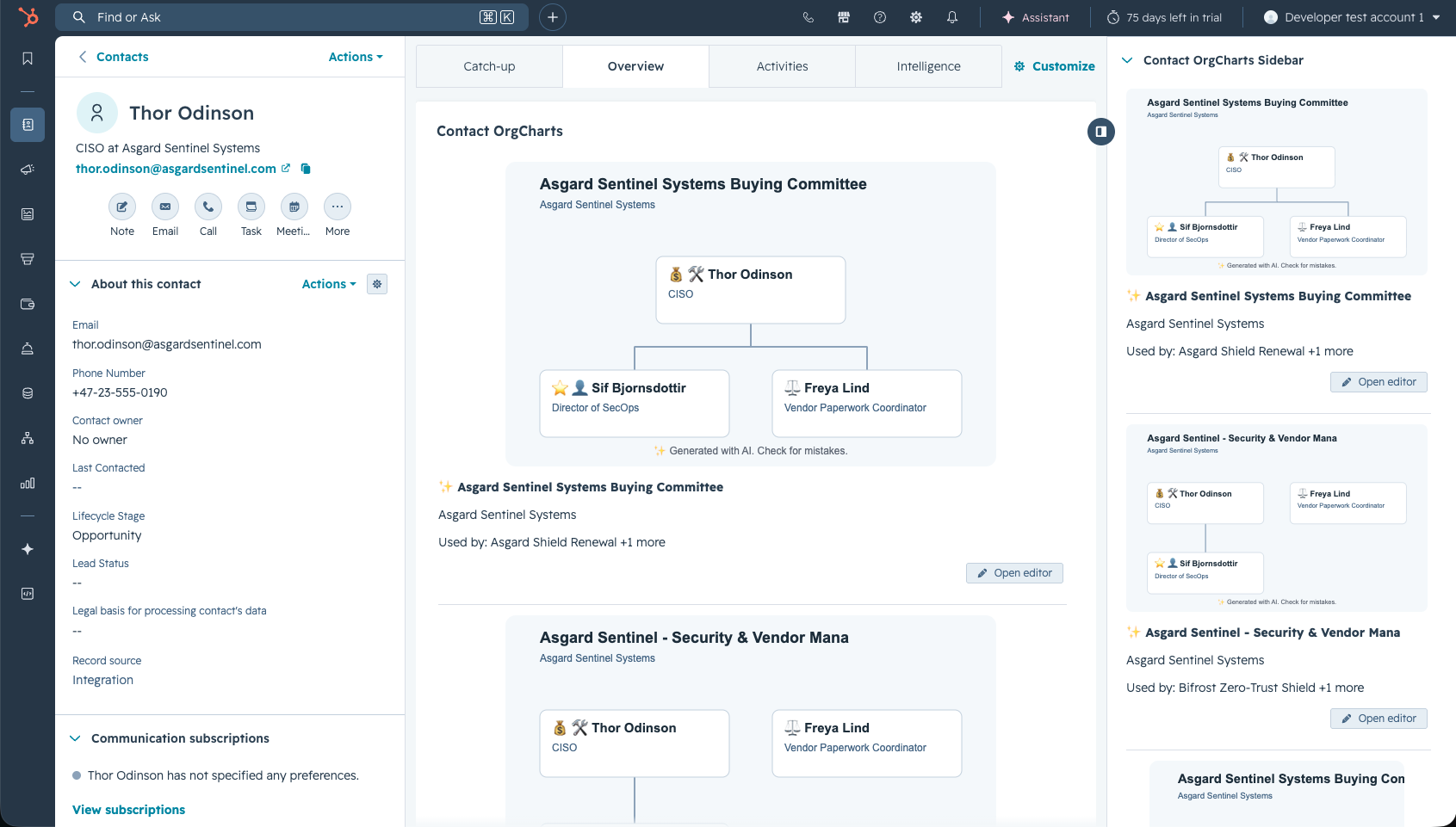
The contact card shows org charts from the contact's associated companies. This helps reps understand where a contact appears in the account map without leaving the contact record.
For each chart, the card shows the company, associated deals, preview image, and an Open editor action when there is an associated deal available.
8. The Org Chart Editor
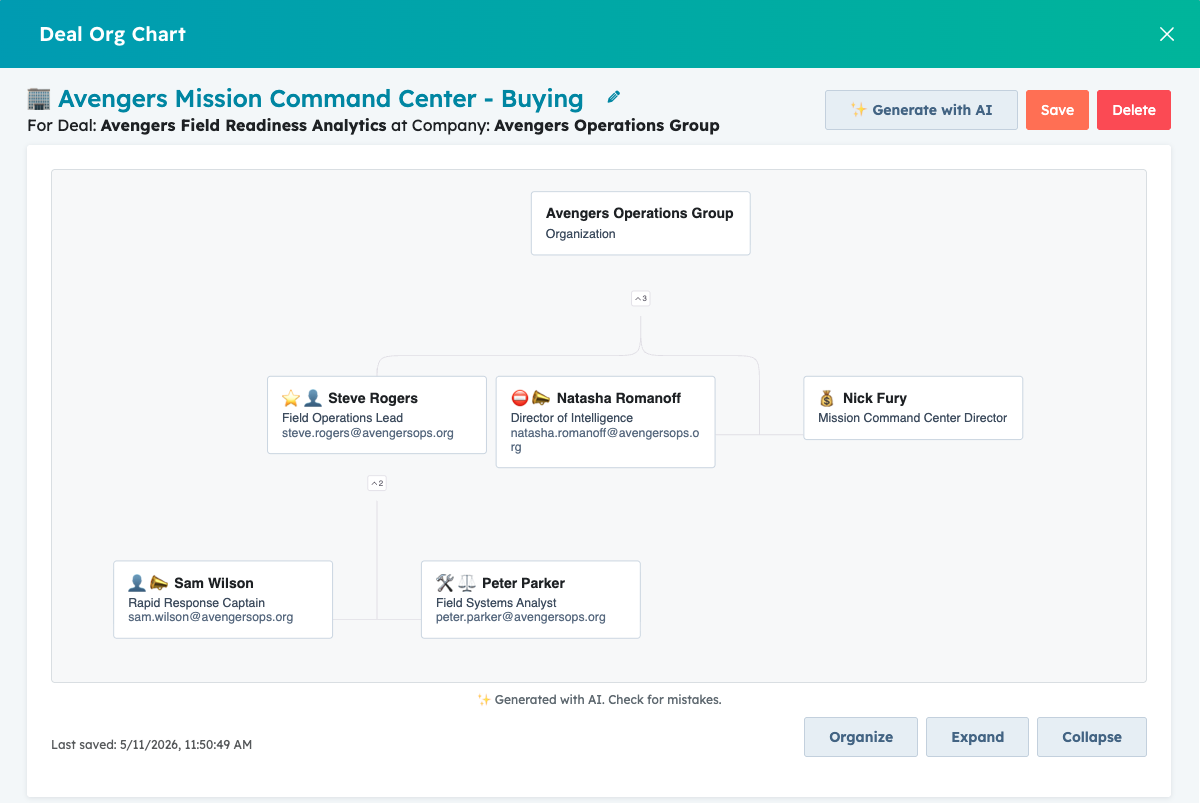
The editor is where you create, organize, and maintain org charts. It opens in a HubSpot modal from the deal, company, or contact cards.
The editor has two main areas:
- Contact list: shows HubSpot contacts and manual contacts available for the company, with the contact title under the name and compact relevance and engagement scores.
- Chart preview: shows the current reporting structure and buying roles. Optional switches can add relevance and engagement visual cues to the boxes while you are reviewing the chart.
HubSpot contact names open the related HubSpot contact record in a new browser tab. Manual contacts stay inside OrgChart and do not link to HubSpot until they are created as HubSpot contacts.
Click a contact box in the chart to open the contact sidebar. The sidebar shows the contact name, title, HubSpot contact link when available, intelligence badges, buying roles, associated deals, email, phone, last contacted date, contact owner, lead status, lifecycle stage, and whether the contact came from HubSpot or was added manually.
The main editor controls are:
- Generate with AI: creates or updates a suggested chart from available company, deal, contact, buying-role, and engagement context.
- Save: saves the chart, buying roles, reporting lines, and preview image. The button changes to Saved when there are no unsaved changes.
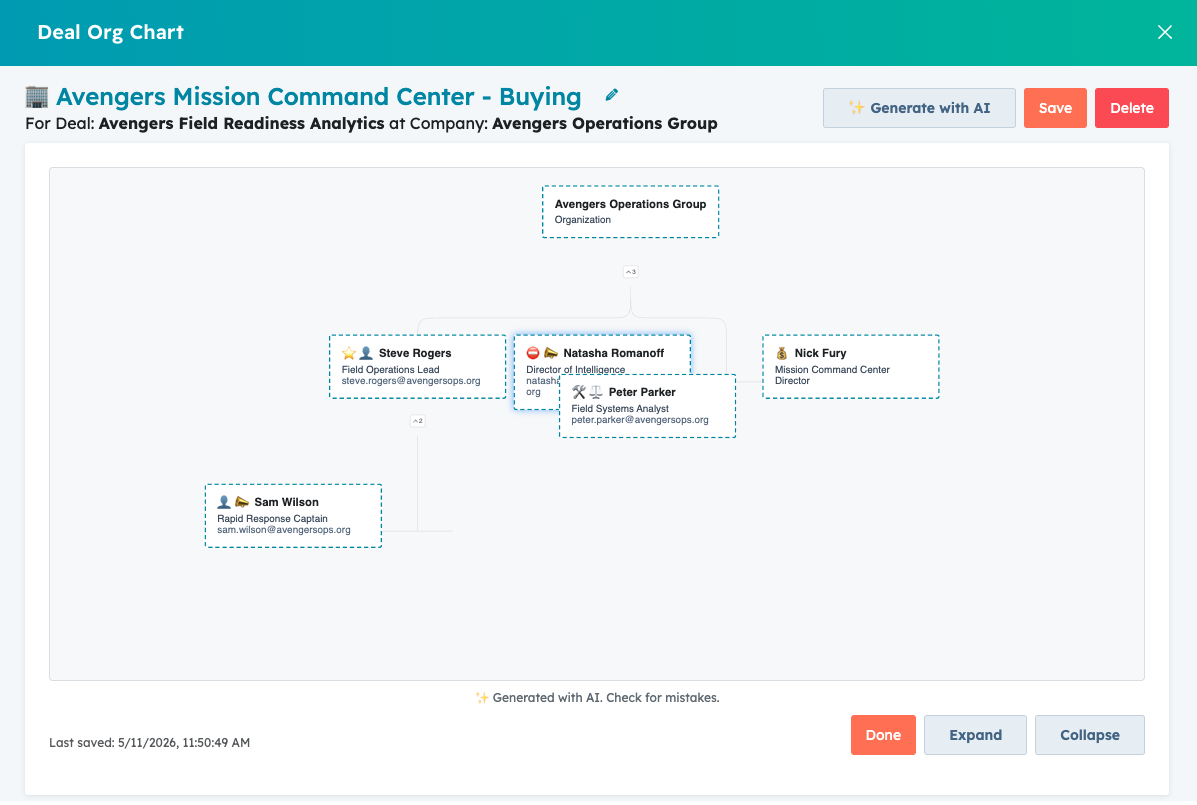
- Edit / Done: turns visual organizing on or off. While editing, drag a contact onto another contact to set the reporting line.
- Full screen: opens the editor in a larger browser tab when the embedded HubSpot modal is too small.
- Download: downloads the current org chart image. If relevance or engagement switches are enabled, the downloaded image uses those same visual cues.
- Zoom controls: zoom out, zoom in, and fit the chart to the visible canvas.
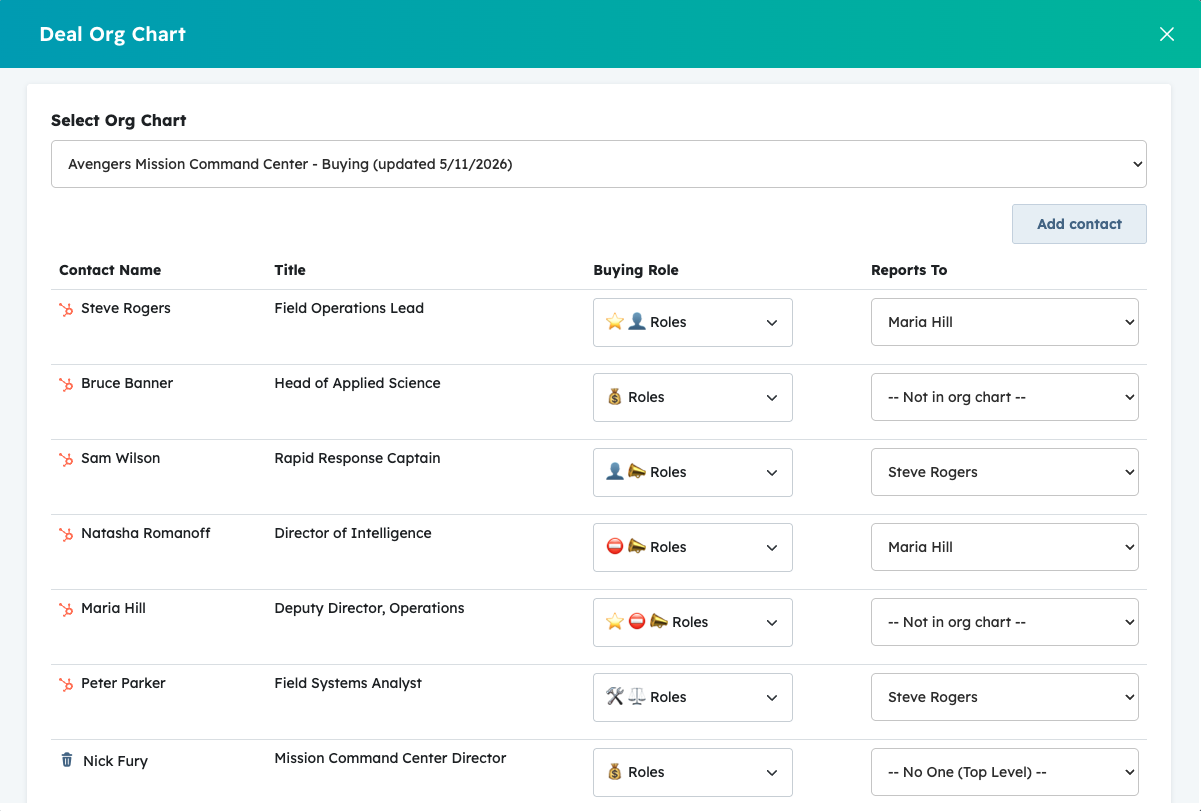
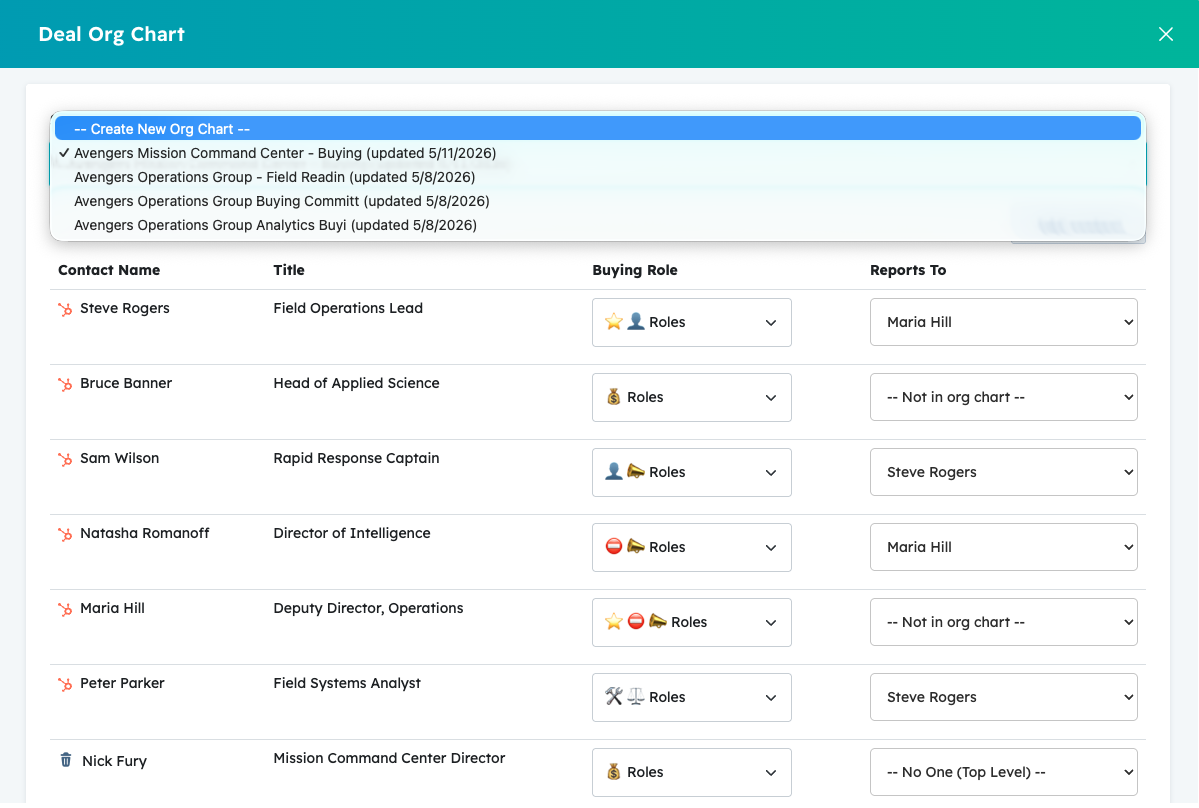
8.1 Create or Select an Org Chart
- Create a new org chart from the editor when a company does not have one yet.
- Select an existing org chart when the company has multiple maps.
- Org chart names are limited to 40 characters.
- Changing the name, reporting structure, or buying roles regenerates the preview image used in HubSpot cards.
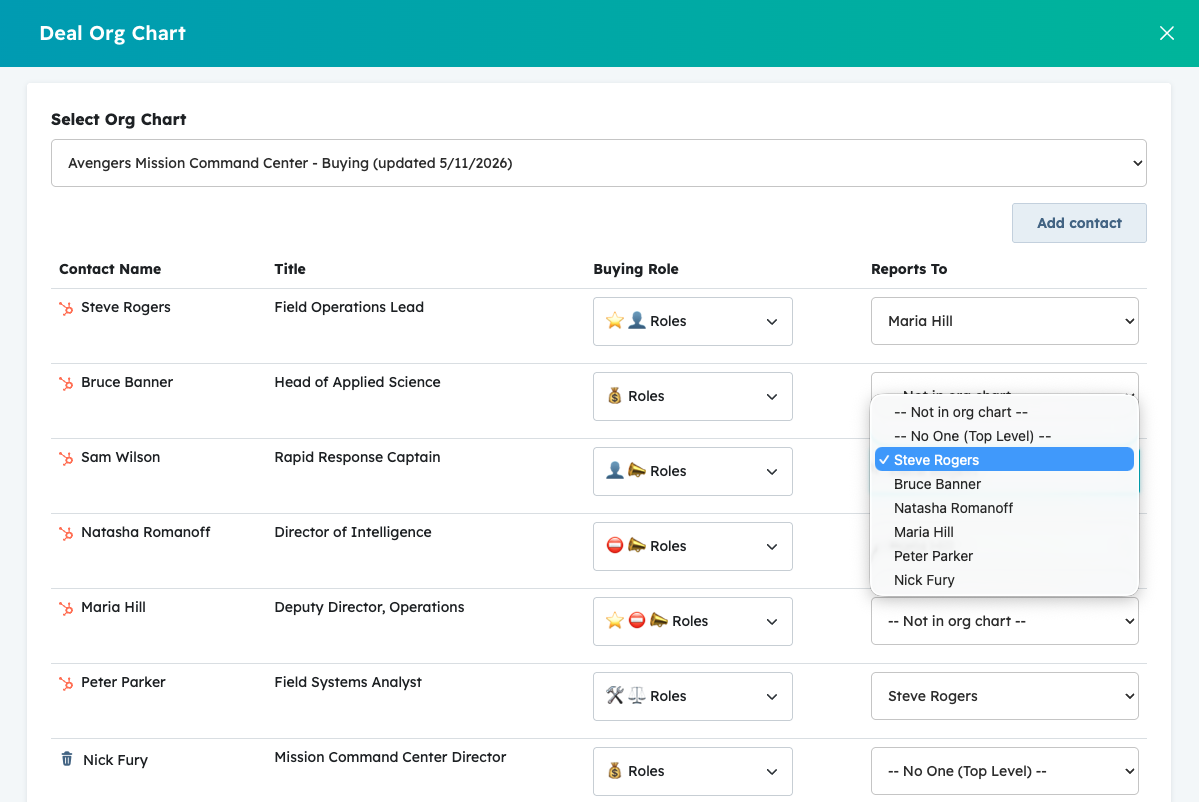
8.2 Define the Reporting Structure
For each contact, select who they report to. Choose No One (Top Level) for top-level stakeholders and Not in org chart for contacts that should remain in the company contact list but not appear in the current chart.
You can also click Organize and drag one person onto another to create a reporting relationship visually. Click Done when finished.
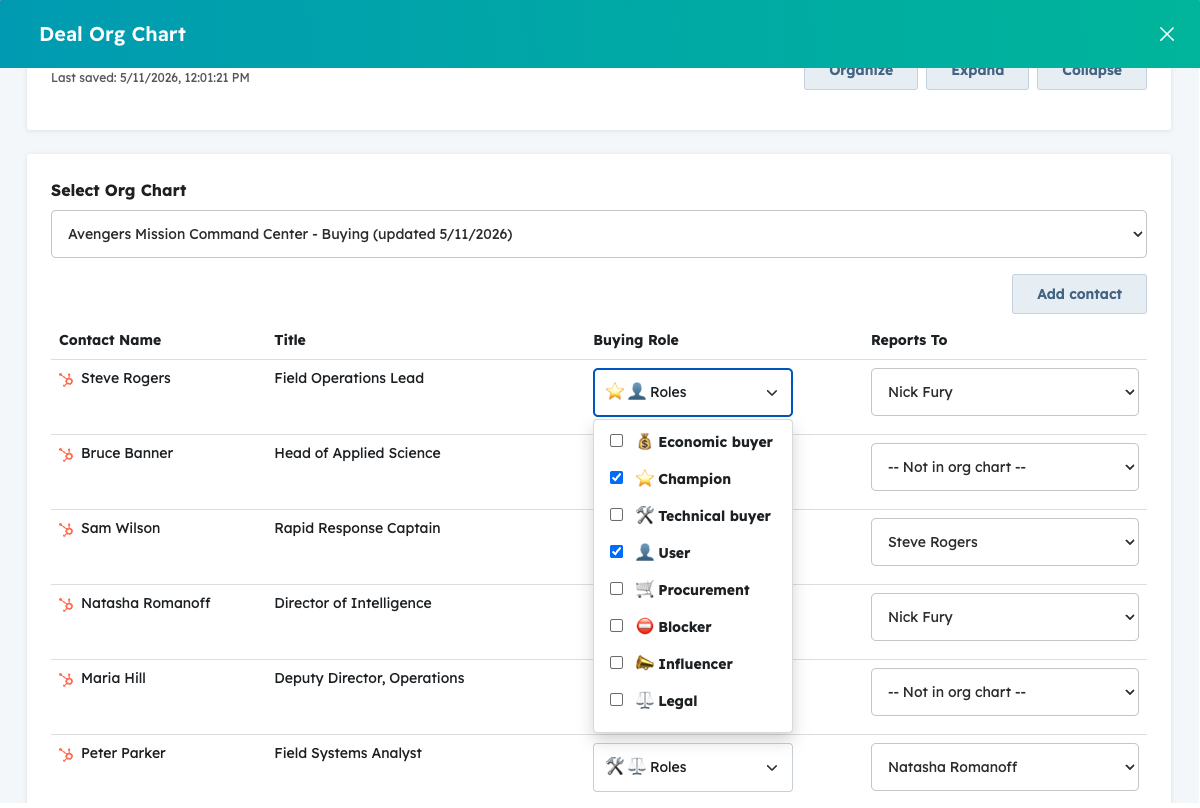
8.3 Assign Buying Roles
Buying roles identify how each person influences the deal. OrgChart uses HubSpot's native Buying role contact property as the source of truth. The default HubSpot buying-role options are:
- ⛔ Blocker
- 💰 Budget Holder
- ⭐ Champion
- ✅ Decision Maker
- 👤 End User
- 🤝 Executive Sponsor
- 📣 Influencer
- ⚖️ Legal & Compliance
- ● Other
When you assign a buying role in OrgChart, OrgChart updates the HubSpot contact's Buying role value. This keeps HubSpot and OrgChart coordinated instead of maintaining a separate app-only role list.
To add, rename, remove, or reorder buying roles, update the Buying role contact property options in HubSpot. Admins can use Settings > General > Buying Roles > Manage buying roles in HubSpot to open the HubSpot property settings page. After a new role is added in HubSpot, it normally appears in OrgChart after the short property cache refresh, usually within about five minutes.
OrgChart settings are only for changing the icons shown next to each HubSpot buying role. The role names and internal values come from HubSpot and should be managed there.
8.4 Review Contact Intelligence
OrgChart calculates deterministic contact intelligence scores for each contact in the company org chart. The scores are designed to help the team quickly scan who looks commercially relevant and who has recent engagement, without changing HubSpot data.
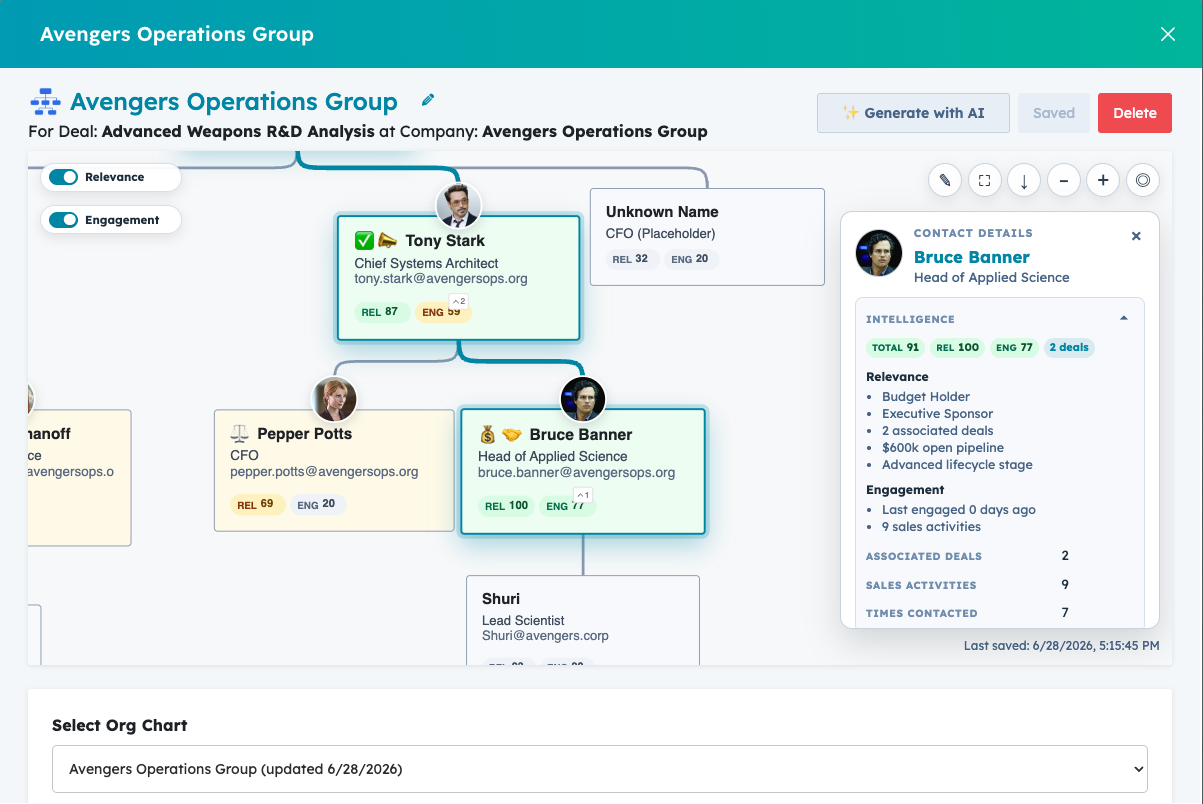
The contact list shows compact Rel and Eng badges. The contact sidebar shows Total, Rel, Eng, and associated deal badges in one row. Click the Intelligence title in the sidebar to expand the explanation, including the main reasons and source facts used for the score.
The org chart boxes do not show intelligence badges by default. Use the Relevance switch to show relevance badges, background tint, and a small size cue. Use the Engagement switch to show engagement badges, border strength, border color, and shadow. Low engagement has no shadow so stale or unknown contacts do not look visually over-emphasized.
Total score: round((relevanceScore * 0.6) + (engagementScore * 0.4)). Scores are grouped as High from 75 to 100, Medium from 45 to 74, and Low from 0 to 44.
Relevance score: starts from a neutral baseline and increases or decreases from account-map signals. Strong buying roles such as decision maker, executive sponsor, budget holder, and champion add the most weight. Influencer, end user, legal and compliance, and custom roles add smaller weight. Blocker reduces the score unless other strong deal signals are present. Associated deal count and open deal amount add points relative to the other contacts in the same company org chart, so the score is company-relative. Lifecycle stage, lead status, and title signals such as C-level, VP, Head, Director, Procurement, Legal, Finance, Security, and IT add limited extra context.
Engagement score: also starts from a neutral baseline. Recent HubSpot engagement is the strongest signal: activity within 7 days is high, 8 to 30 days is medium, 31 to 90 days is weak, and older activity is stale. Sales activity count and contacted count add capped points so noisy contacts do not dominate the score. Email replies add more weight than email clicks or opens. If HubSpot has no recent activity date and no activity counts, OrgChart shows No recent engagement data instead of treating the contact as a proven zero-engagement stakeholder.
OrgChart reads available HubSpot contact properties such as last contacted, last activity, last engagement, number of sales activities, number of times contacted, email open/click/reply dates, buying role, associated deal count, recent deal amount, and total revenue. If a HubSpot portal does not expose one of those properties, OrgChart retries safely without it and calculates the score from the remaining available signals.
8.5 Add Manual Contacts
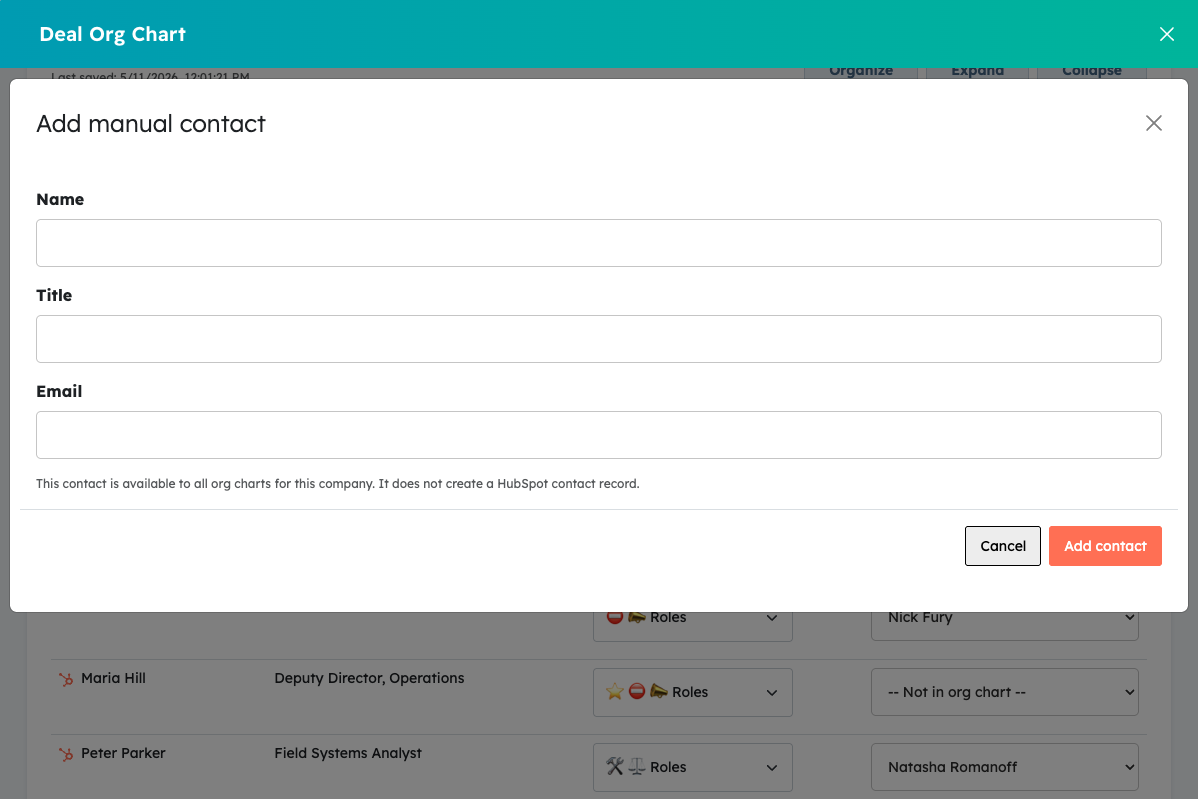
You can add contacts that are relevant to the account map even if they are not HubSpot contacts yet. Manual contacts are stored in OrgChart at the company level, so they are available in other org charts and deals for the same company.
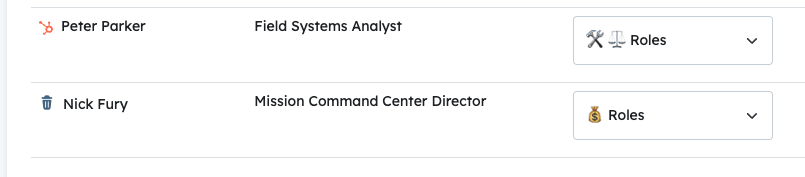
Manual contacts show a trash icon in the contact list and can be deleted from OrgChart. HubSpot contacts show the HubSpot icon and are not deleted from HubSpot by OrgChart.
8.6 Preview Images in HubSpot Cards
OrgChart renders a preview image for each org chart so it can be displayed directly inside HubSpot cards. HubSpot does not allow iframes inside cards, so the editor is opened only when the user clicks the image or button.
Preview images are regenerated when the chart is saved, when reporting relationships change, when buying roles change, when the org chart name changes, and when AI generates or updates a chart.
9. Generate Org Charts with AI
OrgChart can generate a suggested org chart from the deal record, associated contacts, associated company, buying roles, titles, and recent engagements recorded in HubSpot.
Click ✨ Generate AI in the editor. While the process runs, the button shows a generating state. When the chart is created, it is marked with the note ✨ Generated with AI. Check for mistakes. in the editor and preview image.
AI may also identify people mentioned in engagements who are not yet HubSpot contacts. If enabled in settings, OrgChart can create them as manual contacts so they can be included in the chart.
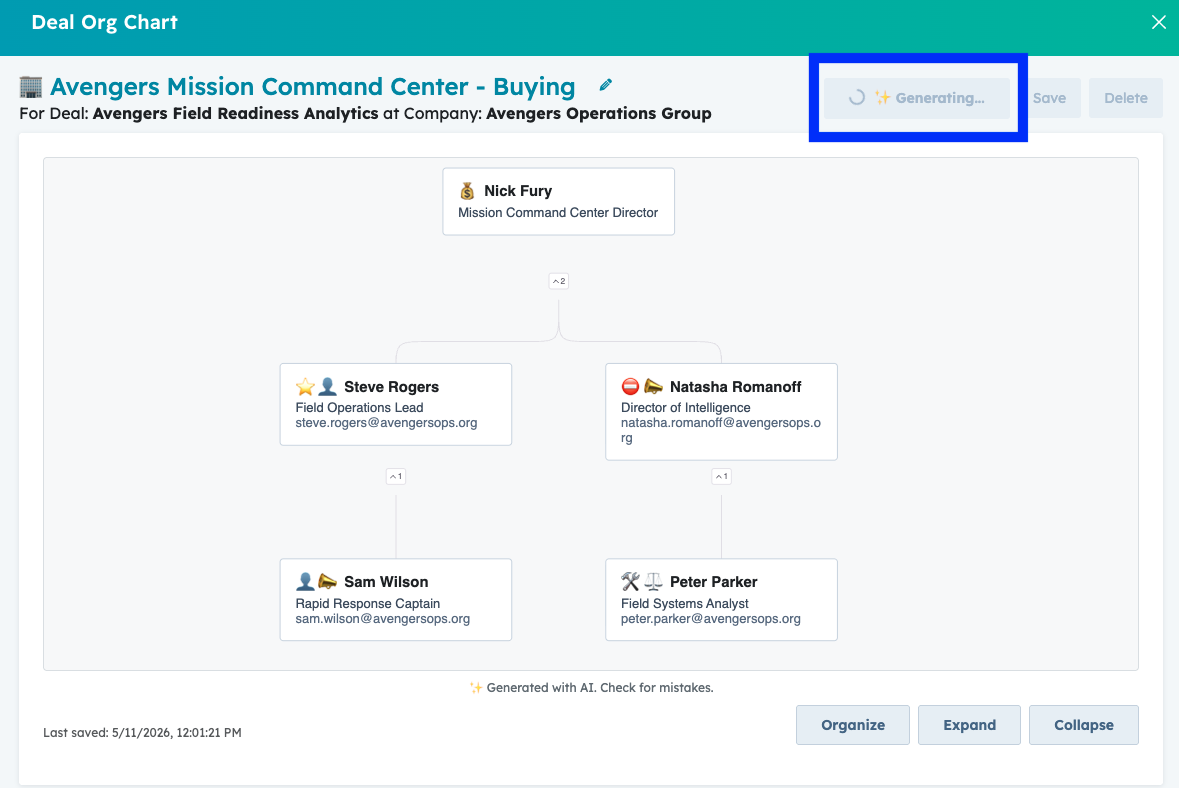
Important: AI-generated org charts are suggestions. Review reporting lines, missing contacts, and buying roles before using the chart in a sales process.
10. OrgChart Home Page
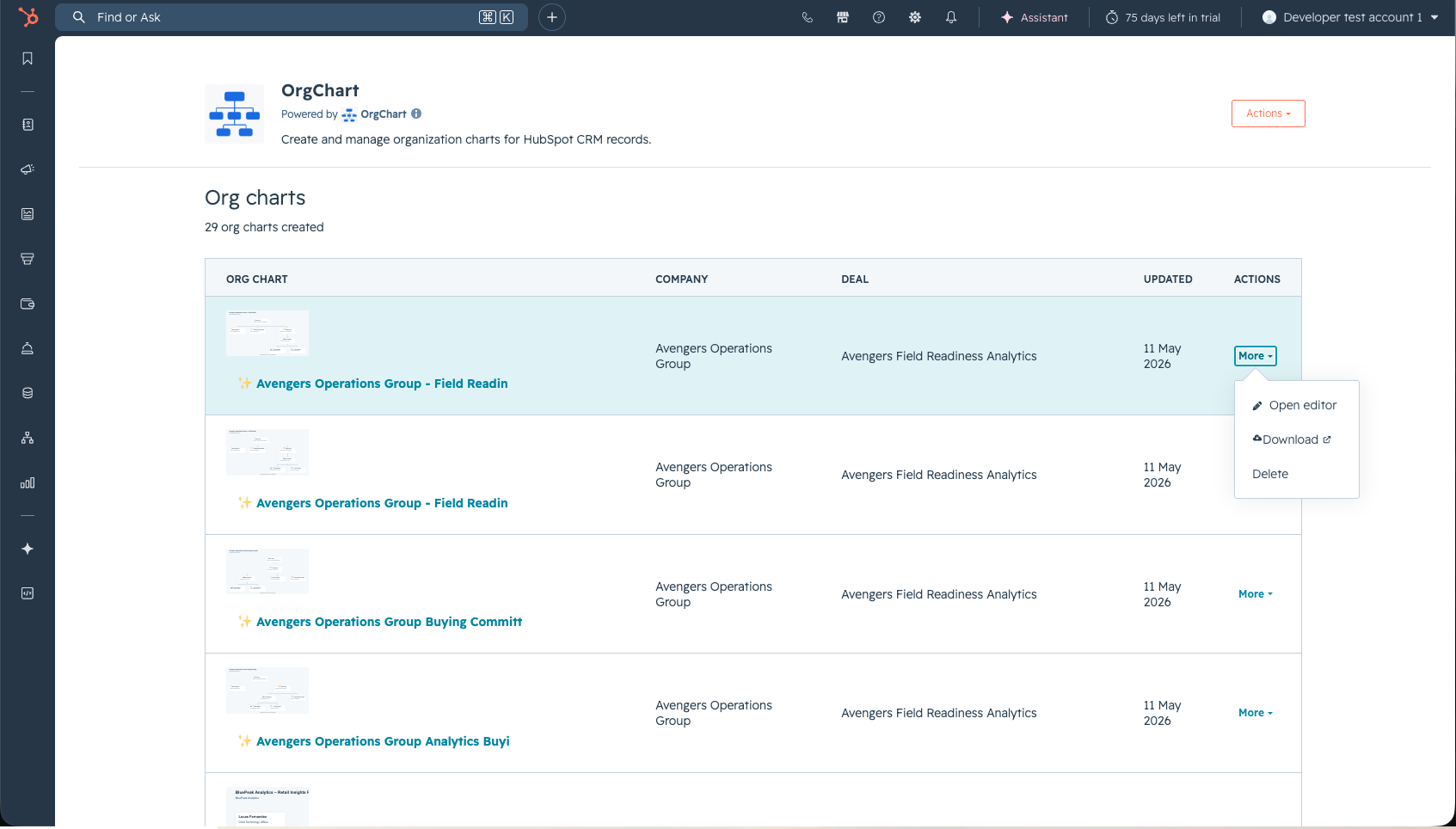
The OrgChart home page lists org charts created in the account. It is useful for admins and managers who want to review account maps without opening each HubSpot deal.
From the home page, users can:
- View paginated org charts.
- Open the editor for a selected chart.
- Download the preview image.
- Delete an org chart.
11. Settings Overview
Only OrgChart admins can manage account settings. Settings are available from the HubSpot app settings page and from OrgChart cards when the user has access.
The main settings areas are:
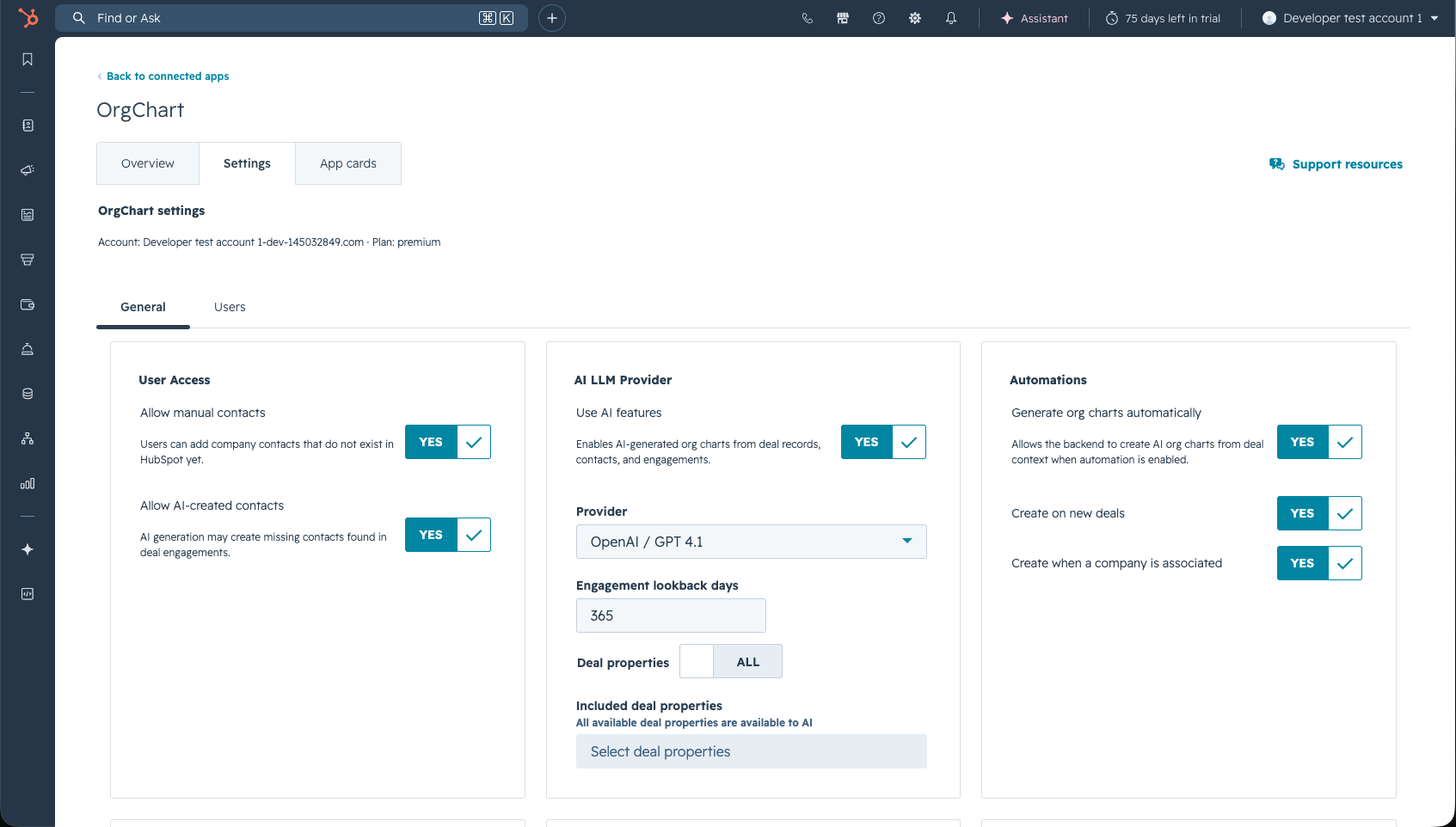
- General: user access, AI usage, automation, subscription, account deletion, and buying-role icons.
- Users: user plan and admin management.
12. General Settings
12.1 User Access
- Allow non-admin users to delete org charts: lets non-admin users permanently delete org charts. When disabled, only OrgChart admins can delete charts.
- Allow non-admin users to manage manual contacts: lets non-admin users add and delete manual contacts in company org charts. When disabled, only OrgChart admins can manage manual contacts.
- Allow AI-created contacts: lets AI generation create manual contacts when a real person appears in engagement evidence but is not already a HubSpot contact.
12.2 AI Usage
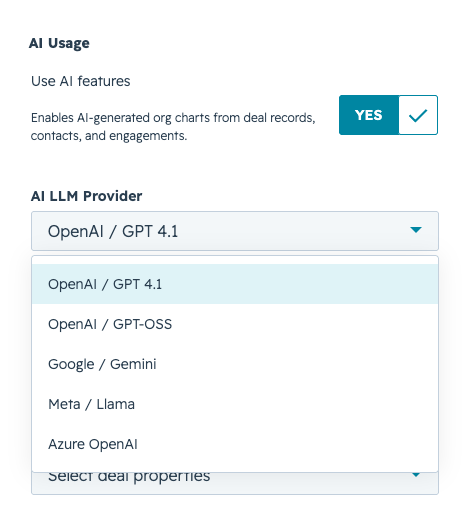
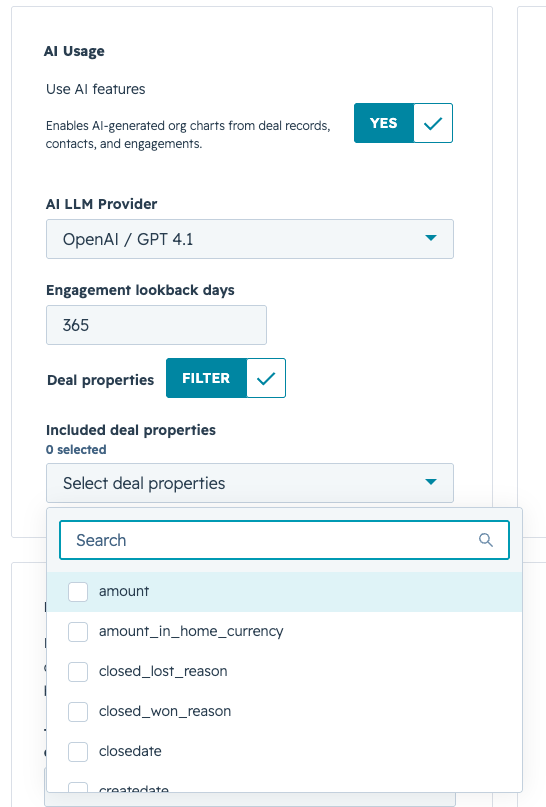
Admins can enable or disable AI features and choose the AI provider used to generate org charts. The AI workflow uses available deal information, company context, contacts, buying roles, and engagement records.
If Azure OpenAI is selected, provide the Azure resource name or base URL and API key. API keys are stored encrypted. If AI usage is disabled, AI generation and AI automation are not available to users.
12.3 Deal Properties and Engagement Lookback
Inside AI Usage, admins can control how many days of engagements AI should consider. They can also choose whether AI sees all available deal properties or only selected deal properties. This is useful when a HubSpot account has many custom properties that are not relevant to account mapping.
12.4 Automations
Automations are enabled by default. Depending on settings, OrgChart can:
- Allow AI org-chart automation globally for the account.
- Create org charts for new deals.
- Create org charts when a company is associated with a deal.
The main automation switch must be enabled for the new-deal and company-association automation switches to have an effect.
12.5 Buying Roles
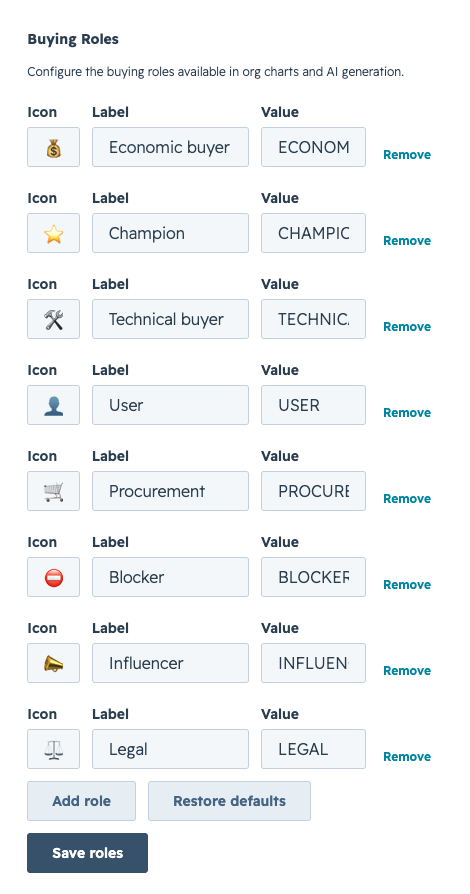
Buying roles are account-wide because they come from HubSpot's Buying role contact property. OrgChart settings show the HubSpot buying-role names and let admins choose the icon OrgChart displays for each one.
Use Manage buying roles in HubSpot to add a new role or change the role options themselves. Use Save icons to save OrgChart icon changes, or Restore default icons to return to the default icon mapping. Changing icons affects the editor, AI generation display, and future preview image generation; it does not rename or create HubSpot buying-role options.
12.6 Manage Subscription
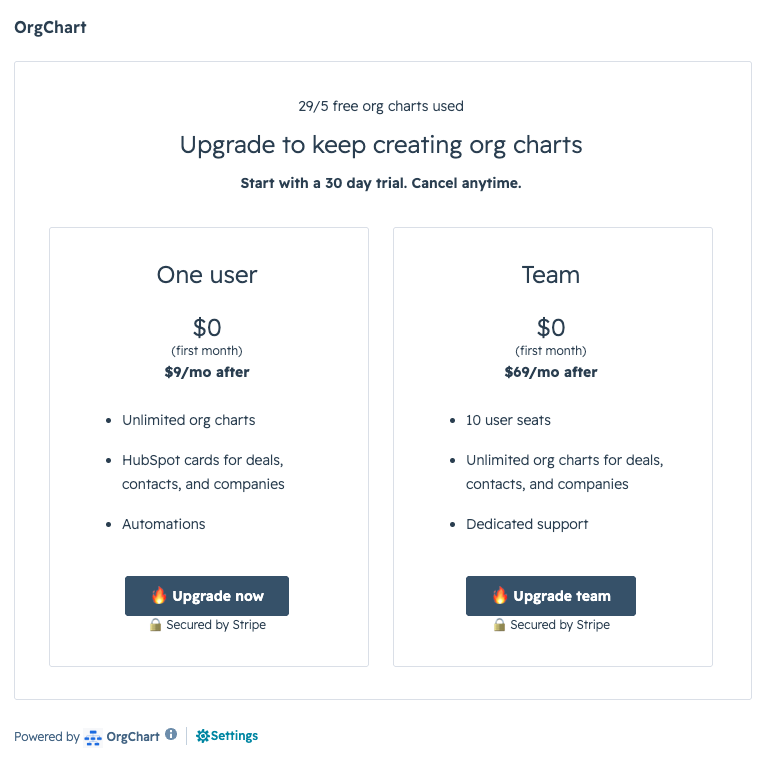
Free accounts can create up to 10 free org charts. OrgChart warns admins as the account approaches the free limit and requires an upgrade before an 11th chart can be created.
Admins can upgrade to an individual plan or team plan from the card paywall or from Settings. Paid admins can open the Stripe customer portal from Settings to manage billing.

12.7 Delete Account
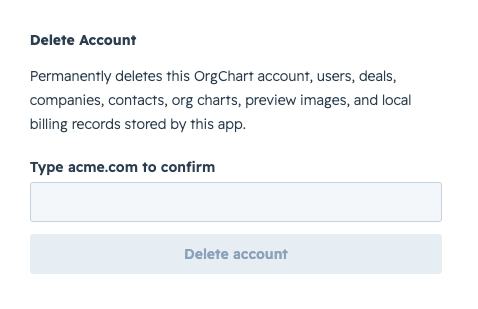
Deleting an account permanently removes OrgChart data stored by the app, including users, deals, companies, contacts, org charts, preview images, and local billing records. It does not delete your HubSpot account.
Cancel paid subscriptions before deleting the account.
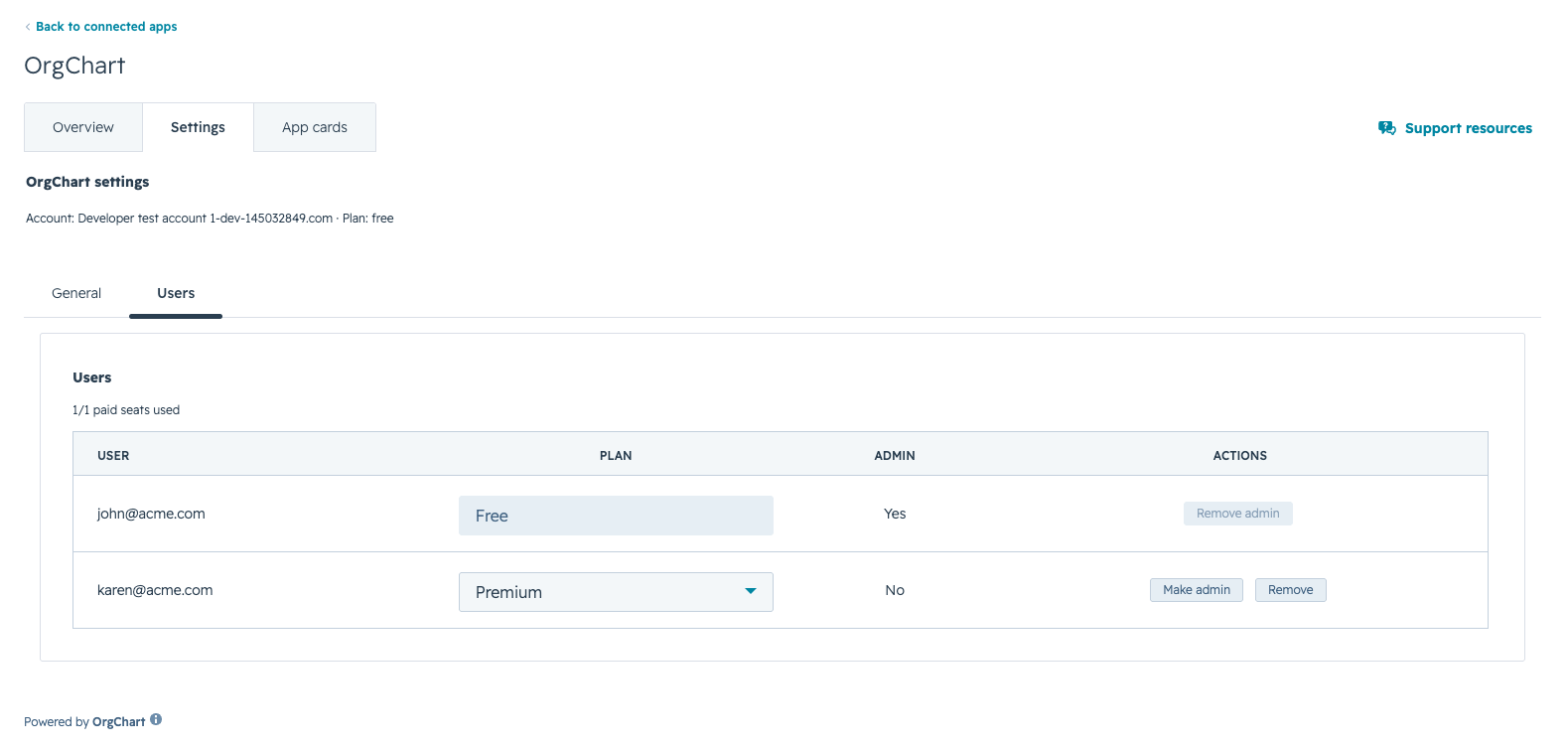
13. User Management
The Users tab lets admins manage OrgChart users for the account.
- Plan: change a user between free, premium, unregistered, or deleted states.
- Admin: make a user an OrgChart admin or remove admin access.
- Remove: remove a non-admin user from the OrgChart account.
Changing a user's plan does not cancel or change the Stripe subscription by itself. Billing must be managed from the customer portal.
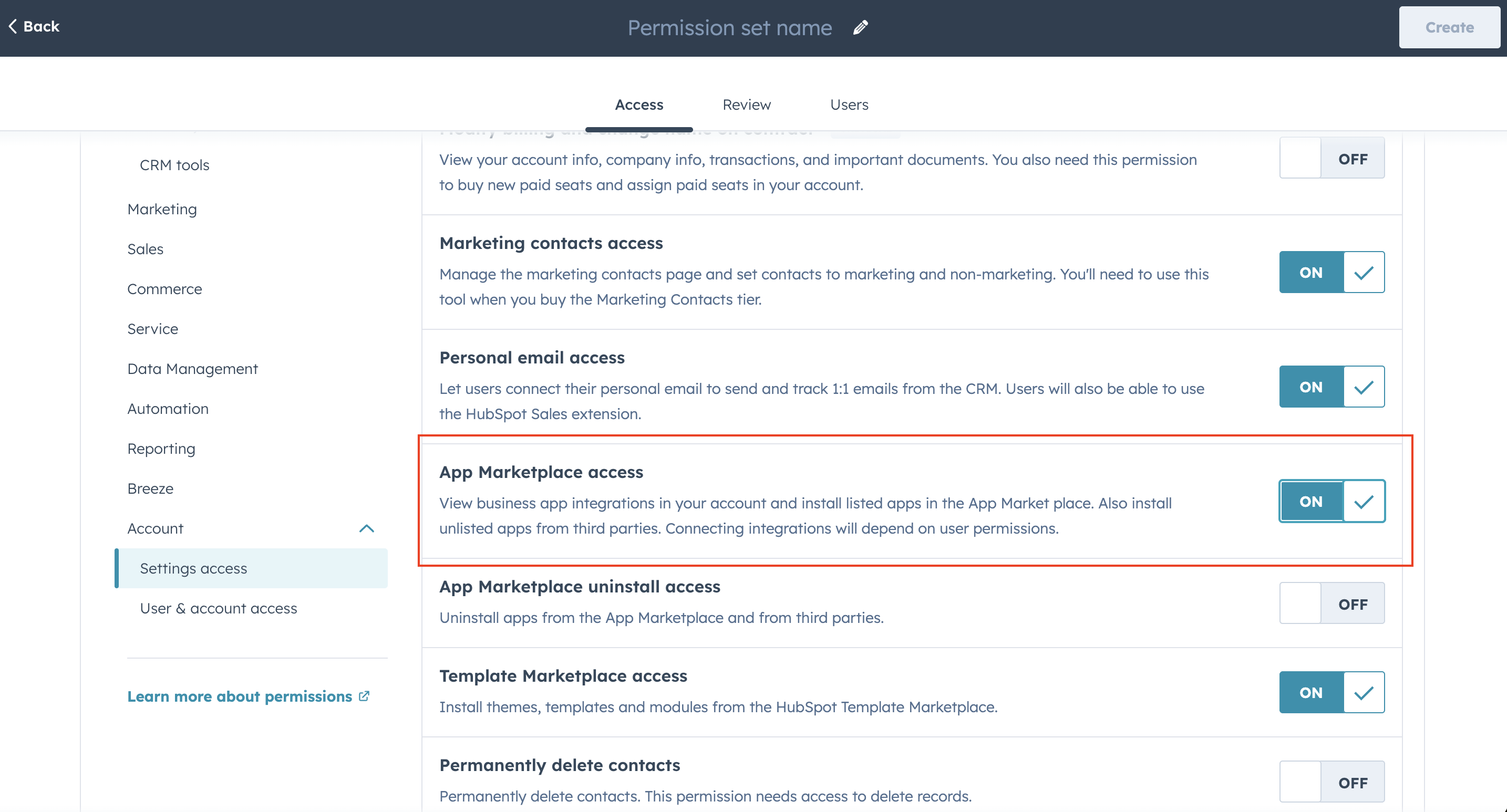
14. I Cannot Install the App
You may not have permission to install apps in HubSpot. Ask a HubSpot Super Admin to install OrgChart or grant you permission to install marketplace apps.
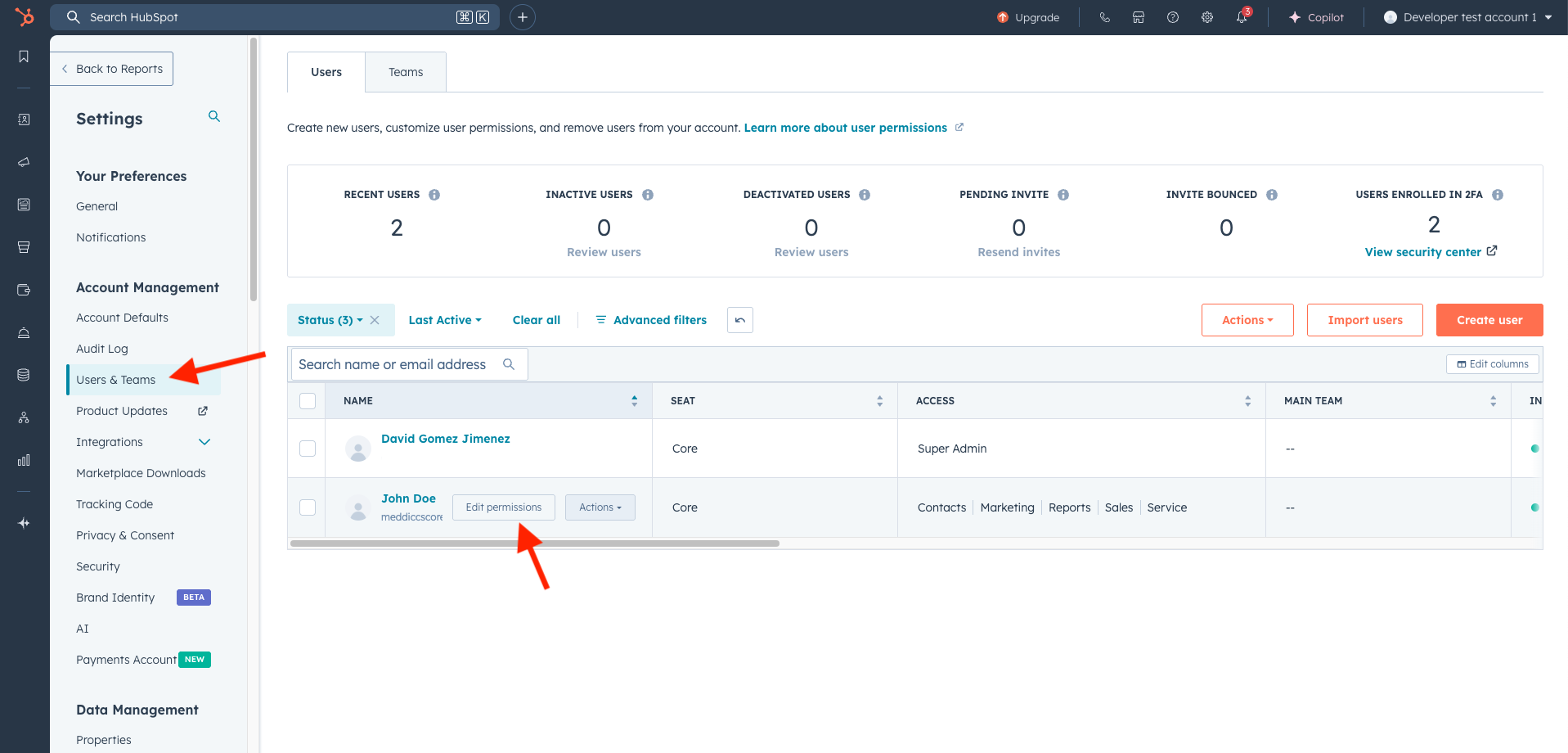
15. I Cannot Add Cards to My View
You need Customize record page layout permissions or Super Admin permissions in HubSpot to add cards to record views.
If you can see OrgChart in Connected Apps but cannot add cards, ask a HubSpot admin to add the cards to the shared record layout.
16. The Card Says OrgChart Must Be Reconnected
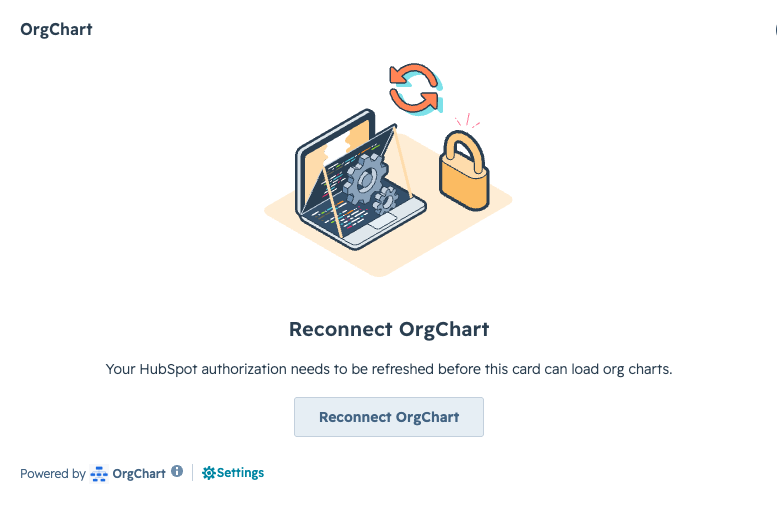
If the HubSpot token expires, is revoked, or required scopes change, OrgChart will show a reauthorization message on the card. Click the Reconnect action and approve the permissions again.
17. The Editor Does Not Open for a Deal
Org charts are company-based. If a deal has no associated company, OrgChart cannot create or open the editor. Associate a company with the deal first, then refresh the card.
18. The Preview Image Is Not Updating
Preview images are regenerated when changes are saved. If the HubSpot card still shows an older image, close the editor and refresh the card or record. The card appends a refresh token to preview image URLs to avoid stale cached images.
If the issue continues, open the editor, make a small change, and save again to force regeneration.
19. AI Generation Fails
AI generation can fail if AI is disabled in settings, the selected provider is not configured, the deal has no contacts, or HubSpot engagement data cannot be read. The editor shows an error message when generation fails.
Check:
- The account has AI enabled.
- The selected LLM provider is configured.
- The deal has an associated company and contacts.
- The app is still authorized in HubSpot.
20. AI Autofill Is Not Taking Information from My Emails
To enable AI Autofill from email activity, you may need to reauthorize the app so OrgChart can use the newer permissions required to read email engagement data.
Install appIn all cases, the information extracted from emails is limited to the initial portion of each email. This helps avoid processing repetitive long threads, legal disclaimers, and other non-essential content.
If critical deal information is buried deep within email threads or other engagements, AI might not capture or interpret it accurately. AI can also hallucinate, so always check important facts before relying on the generated org chart.
21. Billing or Subscription Issues
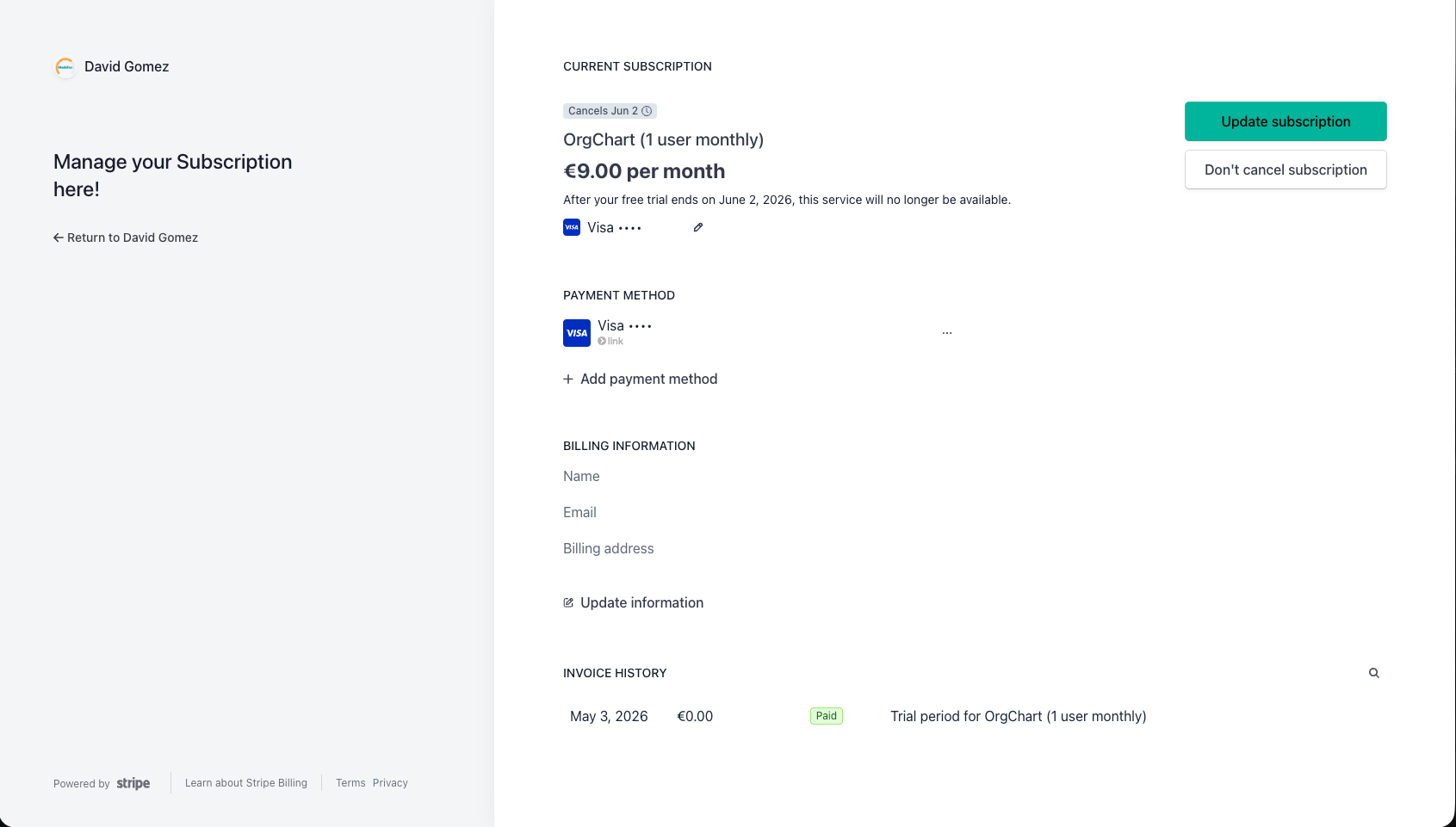
Admins can manage billing from Settings > General > Manage Your Subscription. The customer portal opens in a new tab because Stripe blocks the portal inside some embedded contexts.
If the portal cannot find your subscription, contact support with the HubSpot account name and the email used for purchase.